Building the Customer Acquisition Model with SD DSL
system dynamics, sd dsl, scenarios, marimo, bptk, bptk-py, python, business simulation
Building the Customer Acquisition Model with SD DSL
Based on the causal loop diagram, we will implement a stock and flow model with the following stocks, flows, converters and constants:
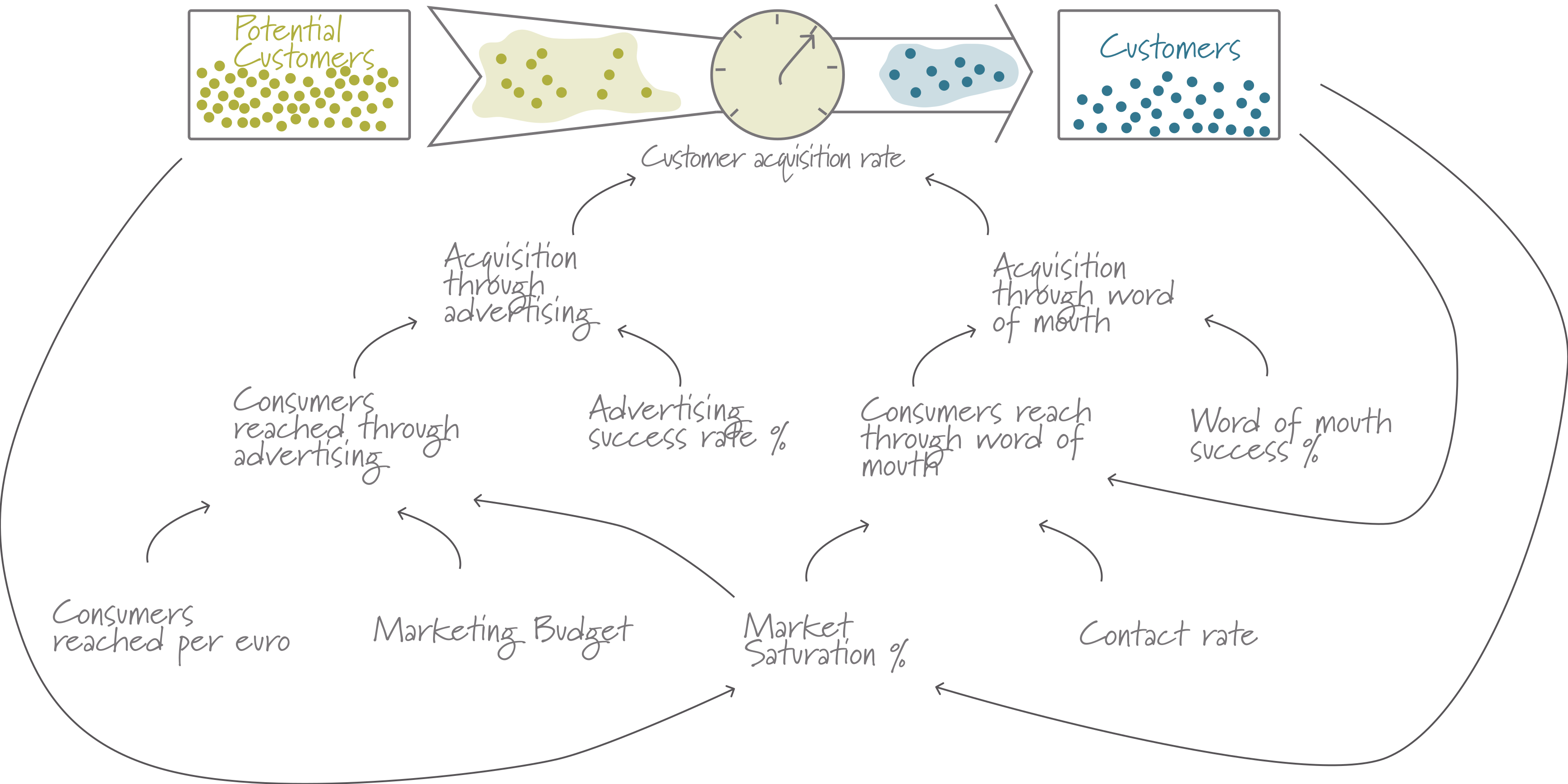
Building The Model
Setting up the model using the SD DSL is quite easy. We first instantiate a model class, which will be the container that holds the model elements. This ensures you can run multiple models in parallel. We then add the stocks, flows, converters and constants, write the equations - the neat thing is that we can write these directly using the model elements - and finally initialize the stocks and set the constants.
All of this lives in a single cell, and that is deliberate: change any number in it, press play, and every diagram and table below recomputes.
The model is now complete and we can directly plot the behaviour of the model elements over time:
Of course you can also access the underlying Pandas dataframe:
For debugging purposes it can be useful to take a look at the internal representation of the model equations - these are stored as Python lambda functions.
"lambda model, t : ( (model.memoize('initial_customers',t)) if (t <= model.starttime) else (model.memoize('customers',t-model.dt))+ model.dt*(model.memoize('customer_acquisition',t-model.dt)) )"
"lambda model, t : max( 0,min( model.memoize('potential_customers',t), model.memoize('acquisition_through_advertising',t)+model.memoize('acquisition_through_word_of_mouth',t)))"
Setting Up Scenarios
Scenarios are just particular settings for the constants and graphical functions in your model and scenario managers are a simple way of grouping scenarios.
You can create scenarios directly in Python (which we will do here), but the easiest way to maintain them is to keep them in separate JSON files – you can define as many scenario managers and scenarios in a file as you would like and use as many files as you would like.
Each scenario manager references the model it pertains to. So you can run multiple simulation models in one notebook.
If you do keep them in files, BPTK-Py looks for a scenarios/ folder beside your notebook and loads everything it finds there – including the underlying simulation models. The XMILE quickstart works that way; here we stay in Python.
To manage the scenarios you need to instantiate the bptk class - this class stores the scenario managers and scenarios and provides lots of convenient functions to plot data, export model results or import data.
A convenient feature of scenarios is that you only have to define variables that change - essentially the scenario manager first takes the constants as set in the model itself and then overrides them with the settings from the scenario.
Now we can plot the three scenarios against each other:
You can ask a bptk instance at any time which scenarios it knows about:
Building An Interactive UI
It is easy to build interactive dashboards using marimo’s UI elements – all you need from BPTK is the ability to plot graphs.